

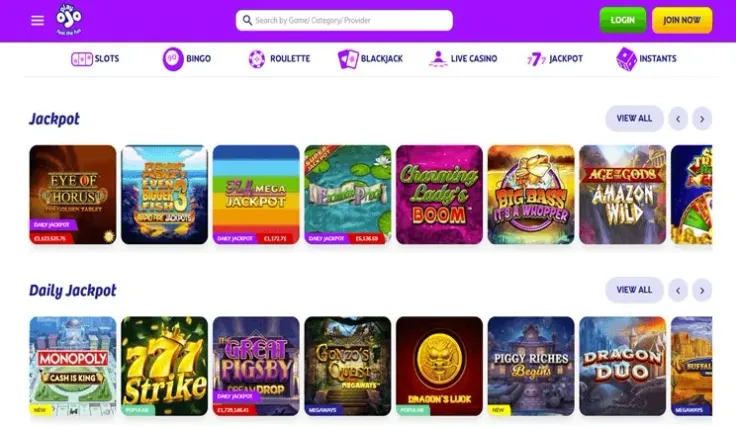
PlayOJO mobile is available three ways: the mobile site in your phone's browser, an iPhone app and an Android app. The browser version needs no download, so it is the quickest way to start. The apps are for players who prefer an icon on the home screen and a dedicated app to open. The table above shows which options exist, and the steps above walk through the browser route.
This page covers what changes on a phone, how to install an app safely and which settings are worth sorting out before you play.
What you can do on a phone

The mobile site opens in your phone's browser, and from there you can log in or create an account. If you are new, you can sign up from your phone and then read the welcome bonus page for the current offer terms; T&Cs apply. Returning players can go straight to logging in.
The main difference from the desktop is the screen. Tables, menus and game screens are all squeezed into a narrow display, so take a moment to check that a game is readable before you play it. Turning the phone sideways usually gives a game more room, though that depends on the game itself.
There is also a difference in how you start. On a computer you type the address or use a bookmark. On a phone the quickest routes are the home screen shortcut from your browser's Add to Home Screen option, or an app icon if you install one. Both open PlayOJO in a couple of taps.
Whichever route you choose, you log in with the same details you used to sign up, so keep them somewhere safe rather than typing them from memory on a shared device. For payment details see the guides to making a deposit and withdrawals.
Apps or browser: how to get started

PlayOJO has an iPhone app and an Android app. Which one suits you depends on how you like to play.
On an iPhone, open the App Store and search for PlayOJO, then check that the app you are about to install is the genuine one before you tap install. The iPhone app page has more detail. On an Android phone, use the app store on your phone in the same way, and read the Android app page for the specifics of that route.
Never install a casino app from unknown sources. If someone sends you a file or a link to an installer, do not open it. A genuine app comes from your phone's own store, and a download from anywhere else could be a copy built to steal your login details. If you are in any doubt, skip the app and use the browser.
The browser route has its own advantages. Nothing takes up space on your phone. You open your browser, go to the PlayOJO website, log in and play. To make it faster next time, use your browser's Add to Home Screen option so the site sits on your home screen like an app. The general app overview compares the options if you want to see them side by side.
Practical points for playing on a phone

A phone is easy to pick up and easy to lose, so start with its own security. Set a passcode or fingerprint or face unlock on the phone itself, and do not let anyone else use it while you are logged in. Log out when you finish a session on a shared or borrowed device, and do not let your browser save a password on a phone that other people use.
Enter your PlayOJO password only on the PlayOJO website or in the app installed from your phone's own store. If a message or a page asks for your login details somewhere else, do not respond.
Mobile data matters too. Games, live tables and video can use a fair amount of data, so a wi-fi connection you trust is usually the safer choice, and public wi-fi is worth avoiding for logging in or paying. A weak signal in the middle of a round is more than an annoyance, so play where your connection is steady.
Finally, use the account's control tools from the same phone. Set a deposit limit or a time-out before you play rather than after a bad session. Details on the tools and on support are on the safer gambling page.